Notes saved as
files you own
FavTray Notes is a notes app that lives in your Mac menu bar app: nested pages with checklists, toggles, code, tables and columns, written with a / menu and Markdown shortcuts. Each page is one JSON file on your Mac, so git, scripts and Claude Code can read and change it, and the open page updates.
Watch it in action
Notes: pages with tables and slash commands. Slash commands, real tables and wide pages, saved on your Mac.
More videos →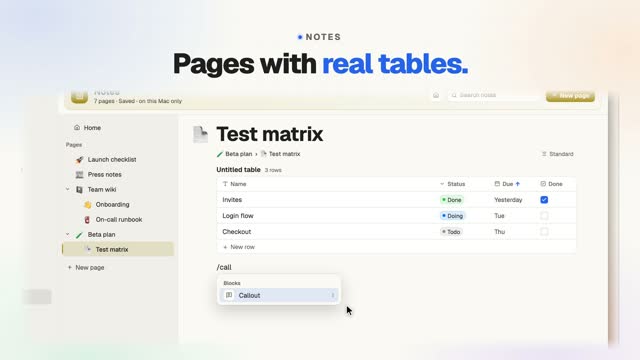
What can I put on a page?
Type / for the block menu, or use Markdown shortcuts and they turn into blocks as you type. Drag blocks by their handle to reorder them. Pages nest inside pages, each with its own icon and title, and each page can be Standard, Wide or Full width.
Text and headings
Paragraphs and three heading sizes, with bold, italic, strikethrough, inline code and links from the format bar that appears when you select text.
Lists and checklists
Bulleted, numbered and checklist items. A checklist menu has Move Checked to Bottom and Delete Checked Items.
Toggles and callouts
Toggles that open and close, callouts with an icon and a tint, quotes and dividers.
Code
Code blocks in 30 languages. Copying one pastes as plain text, without extra blank lines.
Tables
Text, number, date, checkbox and select columns. Click a header to sort. Type /ta for a starter table with Name, Status, Due and Done.
Cards and columns
Card grids and side-by-side columns, for pages that read like a dashboard.
Long pages that stay easy to read
- Search: ⌘F highlights every match on the page ("3 of 12") and lists the other pages that match. ⌘G and ⇧⌘G step through them.
- Fold sections: a heading folds everything under it, up to the next heading of its level. Folding is saved on this Mac, not in the page file, so it works on read-only pages too.
- Toggles: group blocks under a toggle, then Collapse all or Expand all.
- Undo: indenting, grouping, Collapse all and the checklist actions are each one ⌘Z.
One JSON file per page, on your Mac
Notes saves each page as a pretty-printed JSON file in ~/.config/FavTray/Notes. There is no account, no sync and no FavTray server. The folder is watched, so when Claude Code, a script or git pull rewrites a page, it shows up in the open window. If you had unsaved edits on that page, your version is kept and the other one is saved beside it as its own page. A file that won't read is reported and left exactly where it is.
⇧⌘M shows a page as Markdown you can edit and Apply in one ⌘Z. Markdown you paste becomes blocks, and Copy as Markdown takes a page out to GitHub, an issue or an AI chat.
Notes alongside the rest of FavTray
- Reminders: link a page to a reminder, and its full-screen alert gets a button that opens the page.
- Floaters: drag a block onto the screen, or choose Float on Screen, and it becomes a Floater.
- Projects: boards live next to your notes in the FavTray window, stored as files the same way.
What does Free include?
| Free | Pro ($4.99 once) | |
|---|---|---|
| Every block type, the / menu, search, folding, Markdown in and out | Included | Included |
| Notes you create | 2 (sub-pages count; the Welcome page doesn't) | Unlimited |
| Pages you already have | Stay open, editable and saving | Same |
| A page FavTray didn't make on this Mac (copied in by hand) | Opens read-only past the 2 | Editable |
The limit stops only the next new note. Nothing you made, on the trial or before, is removed or locked. Compare every tool on the pricing page.
Frequently asked questions
What is FavTray Notes?
A notes app inside FavTray, the Mac menu bar app. You write nested pages with checklists, toggles, callouts, code, tables, card grids and columns, using a / menu and Markdown shortcuts. Each page is one JSON file on your Mac, in ~/.config/FavTray/Notes. There is no account and no sync.
Where are my notes stored?
One pretty-printed JSON file per page in ~/.config/FavTray/Notes on your Mac. FavTray watches that folder, so a page that Claude Code, a script or git changes shows up without a relaunch. A page with edits you haven't saved keeps your version, and a file that won't read is left where it is, never renamed or deleted.
Does it support Markdown?
Yes. Markdown shortcuts turn into blocks as you type, and Markdown you paste in becomes blocks. ⇧⌘M shows a page as Markdown that you can edit and Apply, and Copy as Markdown takes a page out. Toggles, columns and card grids are written so GitHub renders or hides them.
Can I search my notes?
Yes. ⌘F searches the page you are on and lists the other pages that match. Return and ⇧Return, or ⌘G and ⇧⌘G, step through the matches. A match inside a closed toggle or a folded section shows while you search, without changing the page.
Is FavTray Notes free?
Yes. Free creates 2 notes, and sub-pages count toward the 2; the Welcome page FavTray adds doesn't. Every page you already have, including ones made during the 7-day trial, stays open and editable. Pro, a one-time $4.99 Lifetime license, creates as many as you like.
Can I link a note to a reminder?
Yes. Link a Notes page to a FavTray reminder and the reminder and its full-screen alert get a button that opens the page.
Can I put a note on my screen?
Yes. Drag a block out of the Notes window and let go anywhere, or choose Float on Screen from the block menu, and it becomes a Floater that sits on your screen or desktop.
Ask questions about your FavTray data with your own model: Flow AI. What FavTray stores and where: the privacy policy.
Write it down, keep the file
Free creates 2 notes. Pro, $4.99 once, creates as many as you like. 7-day unlimited trial, no card, no account.